
New launch alert Sudoku Mashup

Sudoku Mashup

We are live and you're officially invited to see what's new. Download on the App Store today.

Download on the App Store
QR code linking to Sudoku Mashup on the App Store

Scan to download

Point your phone's camera at the code to open Sudoku Mashup on the App Store.

What's inside

Classic & variants

Killer, kropki, palindrome, XV and more — one app, many ways to play.

Daily puzzles

A fresh, hand-tuned puzzle every day to keep your streak alive.

Curated archive

Dip into a growing back catalogue whenever you want more.

Power features & hidden gestures

Sudoku Mashup is packed with shortcuts that make solving faster. Here's exactly how to use each one.

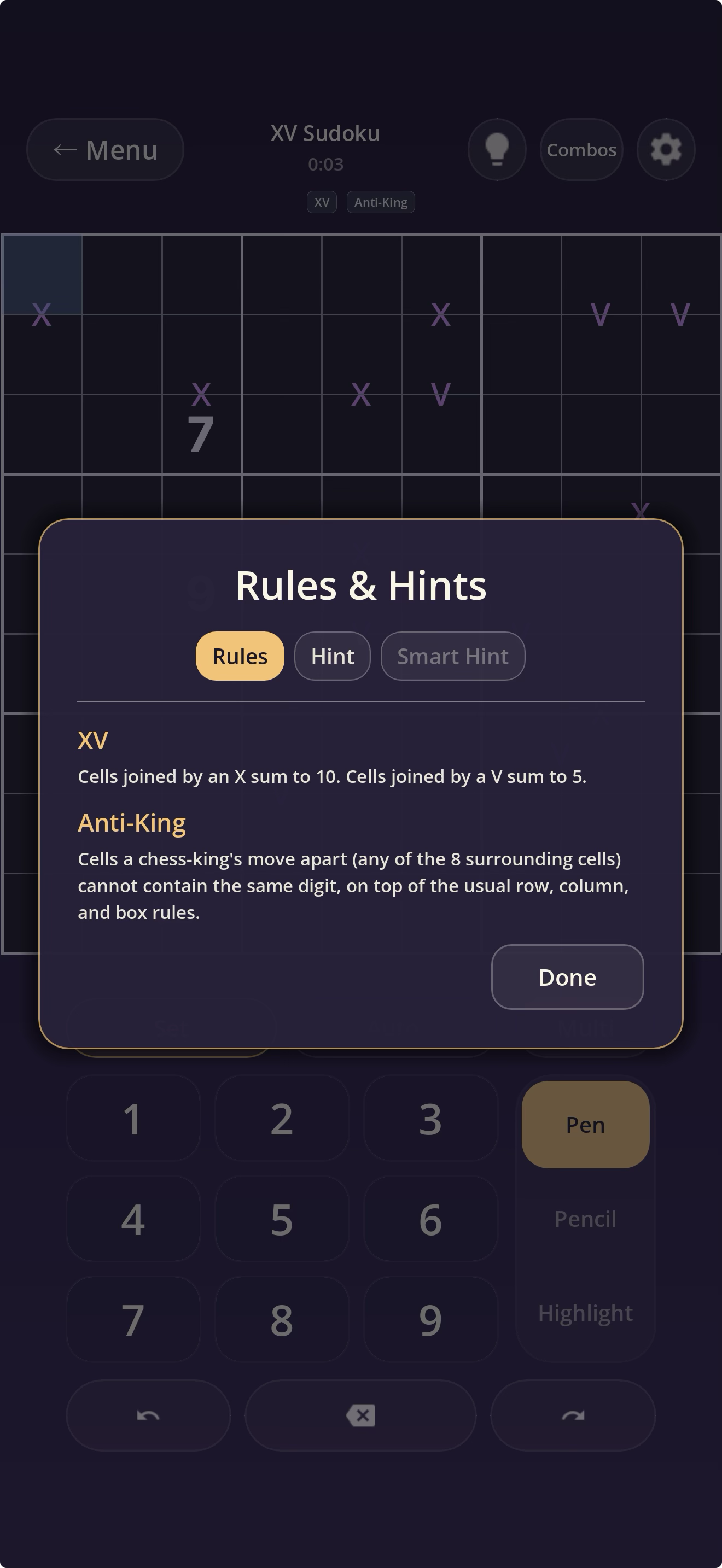
Screenshot goes hereshots/variants.png A mashup puzzle with variant chips and the rules sheet open

Mix-and-match variants

Sudoku Mashup stacks extra rule-sets onto classic Sudoku — Killer cages, Kropki dots, Thermo, XV, palindromes, diagonals, even/odd, anti-knight, anti-king and more — and can combine several in a single puzzle.

  1. Open a variant puzzle. The chip strip under the top bar names every active rule.
  2. A trailing “−” chip (e.g. XV−) means unmarked pairs are constrained too.
  3. Tap the lightbulb (Rules & hints) in the top bar to read each variant's rules in plain English.

Tip: First-time rule intros pop up once per puzzle. Toggle them in Settings → Gameplay & assists → Help.
Screenshot goes hereshots/combos.png The Combos sheet listing valid digit combinations for a Killer cage

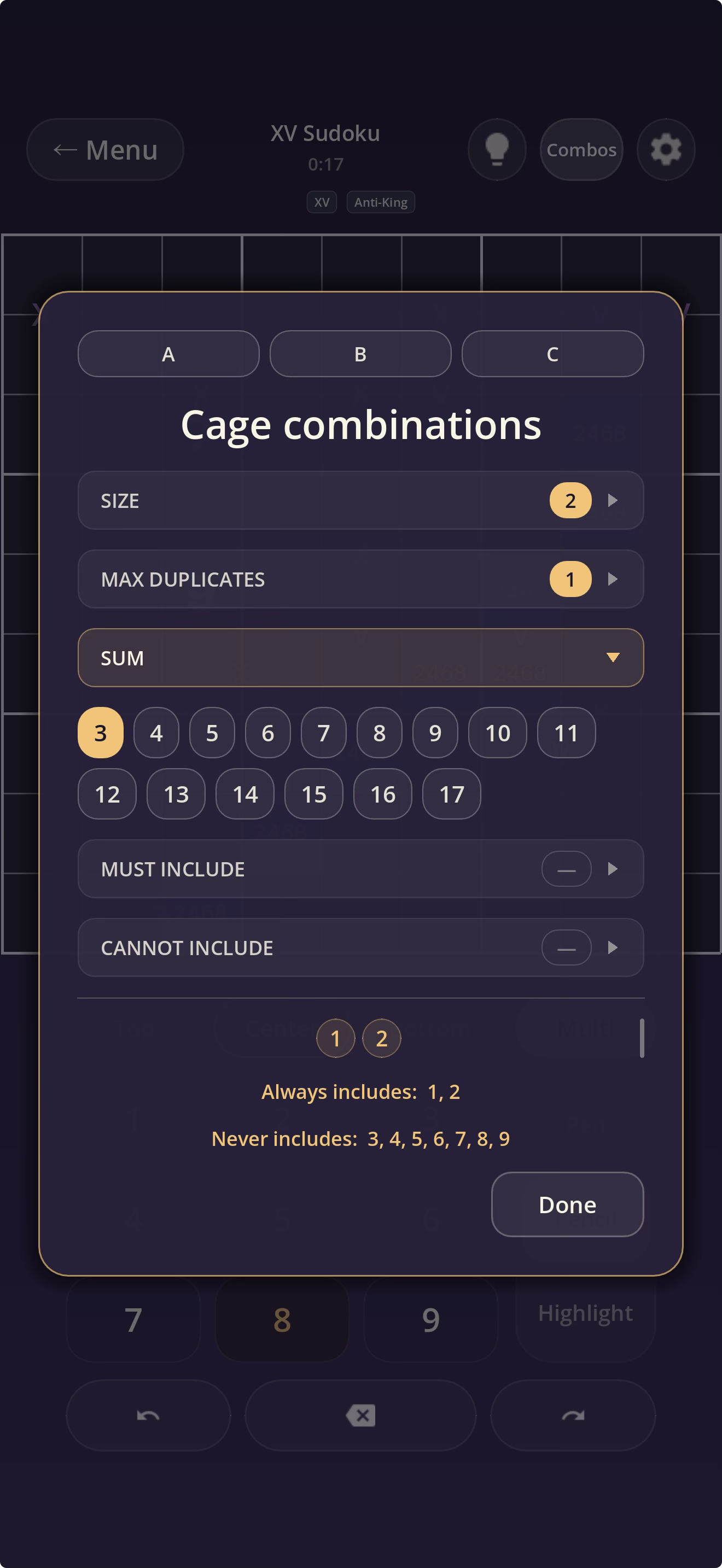
Killer cage Combos helper

On Killer puzzles, Sudoku Mashup lists every valid digit combination for a cage sum, so you don't have to work them out by hand.

  1. Open a Killer puzzle (one with dashed cages and target sums).
  2. Tap Combos in the top bar to browse combinations by cage sum and size.
  3. Or, in Pencil mode with no digit staged, tap inside a cage to open Combos pre-filled for that exact cage.

Tip: Layer must-include / cannot-include digit filters to narrow the list to your exact situation.

Screenshot goes hereshots/multi-digit.png A cell showing three stacked rows of pencil marks

Three-row pencil marks & Multi staging

Every cell holds candidates across three independent rows — Top, Center and Bottom — so you can organise your reasoning instead of cramming everything together. Multi staging drops a whole group of digits in one tap.

  1. Tap the Pencil tab (it defaults to the Center row).
  2. Choose Top / Center / Bottom to pick which row you write into.
  3. Tap Multi, then tap several digits (e.g. 2 4 6 8) to stage them as a group.
  4. Tap a cell — or drag across several — to drop the whole group into that row at once.

Note: Marks are three horizontal rows, not corner marks; their size is adjustable in Settings → Appearance.

Screenshot goes hereshots/autofill.png Holding a digit fills it as a candidate across the board

Auto-fill a candidate everywhere

Long-press any digit in Pencil mode and that number is pencilled into every cell where it's still legal — skipping givens, filled cells, and anything ruled out by a peer or active variant rule. One hold instead of dozens of taps.

  1. Tap the Pencil tab and pick a row (Top/Center/Bottom).
  2. Press and hold a digit (1–9) for about 0.6s until it flashes and buzzes.
  3. The digit fills into every legal cell of that row; your existing marks are kept.
  4. One Undo reverses the whole fill.

Setting: On by default — Settings → Gameplay → Assistance / Gestures → “Long-press to auto-fill candidate.”

Screenshot goes hereshots/copy-paste.png Dragging between pencil sub-tools to copy one layer into another

Copy pencil marks between layers

Copy an entire pencil row into another across the whole board, so you can branch your candidate marks without re-jotting them.

  1. In the Pencil tab, press and hold a sub-tool button (Top/Center/Bottom) until it arms as the source.
  2. Without lifting, drag onto another sub-tool button and rest until its ring fills.
  3. Release — that layer's marks merge into the destination board-wide (existing marks are kept).
  4. One Undo reverses it.

Setting: On by default — Settings → Gameplay → Assistance / Gestures → “Drag to copy pencil layers.”

Screenshot goes hereshots/highlight-digits.png Selecting a number glows every matching cell on the board

Auto-highlight matching digits

Pick a number and every cell already holding it glows across the board, so you can instantly see where a value lives — and where it can't go.

  1. Tap a digit on the number pad (default tool-first input) — all cells with that digit light up.
  2. Using cell-first input? Tap a filled cell to glow its matches instead.
  3. Tap another digit or cell to move the glow.

Setting: On by default — Settings → Highlights → Cell highlights → “Same-digit highlight” (colour & intensity adjustable).

Screenshot goes hereshots/remove-pencils.png Placing a digit clears that candidate from peer cells

Auto-remove invalidated pencil marks

Place a confident digit and Sudoku Mashup erases that number from the candidates of every cell it now rules out — row, column, box, and any active variant links — so your notes stay clean.

  1. Turn it on: Settings → Gameplay & assists → Solving aids → “Auto-remove pencil marks” (off by default).
  2. Back in the puzzle, place a confident digit in a cell.
  3. That digit instantly vanishes from the pencil marks of every peer cell.

Note: A cell's own marks always clear when filled; this setting controls clearing peer cells.